 Engage
Clean lead lists, before the first send
Bring leads in from CSV, see exactly what was imported and skipped, and fix gaps before they reach a campaign.
How do I get leads into Engage?
Upload a CSV file (up to 10 MB). Engage recognises standard columns such as email, first name, company, phone and LinkedIn URL, keeps any other column as a merge variable, and reports how many leads were imported and why any were skipped, for example because they are on the do-not-contact list or already in the campaign. You can also add leads one at a time or through the REST API.
CSV import
Up to 2,000 rows import straight away; larger files run in the background.
Do-not-contact list
Block single addresses or whole domains. Matching leads are skipped at import and never emailed.
Bulk actions
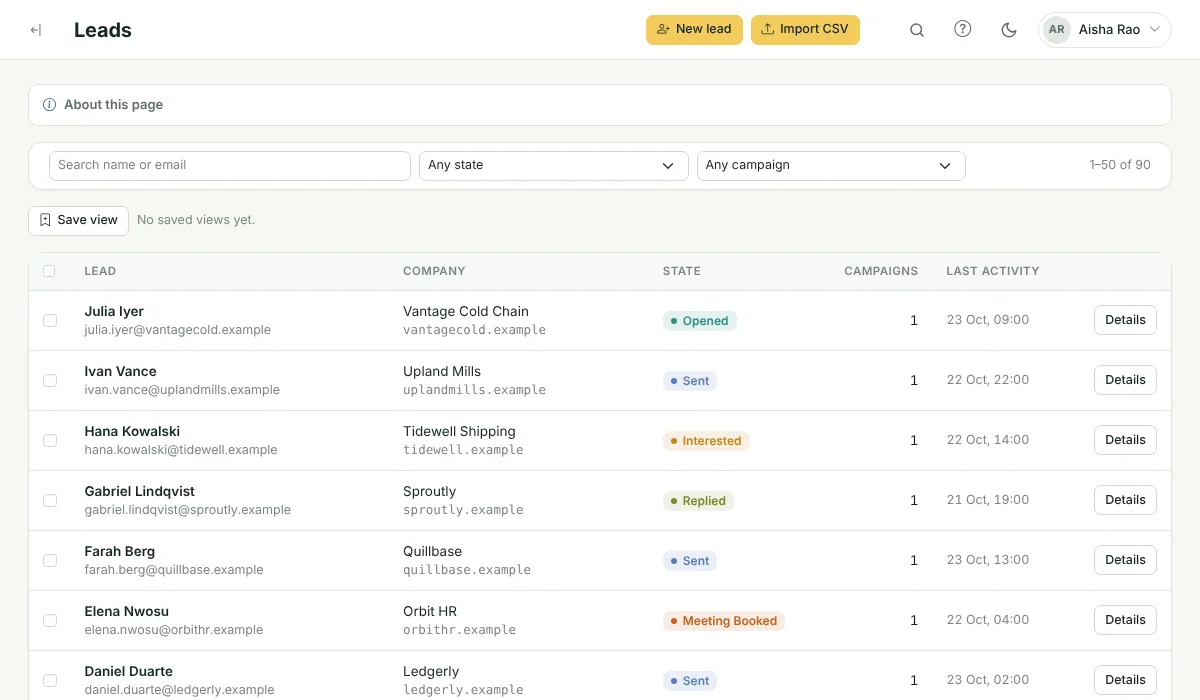
Select leads (or every lead matching a filter) to add to a campaign, assign for enrichment, suppress or delete.
Saved views
Save the filters you use most and come back to them in one click.
Enrichment queue
Leads missing a phone or LinkedIn URL go to a queue your researchers claim and complete.
Lead details
Open any lead to edit details, add it to a campaign and read its history.
See it in the product

Frequently asked questions
How do I get leads into Engage?
Upload a CSV file (up to 10 MB). Engage recognises standard columns such as email, first name, company, phone and LinkedIn URL, keeps any other column as a merge variable, and reports how many leads were imported and why any were skipped, for example because they are on the do-not-contact list or already in the campaign. You can also add leads one at a time or through the REST API.
Does Engage find email addresses for me?
No. Engage does not sell or look up contact data. You import your own leads; the enrichment queue helps your team fill in missing phone numbers and LinkedIn URLs.
What happens to duplicates?
A lead already in the campaign is skipped and counted in the import summary, so nobody is enrolled twice.
Problems this solves
Related features
Sending & limits
Connect your Gmail or Google Workspace mailboxes and Engage decides, for each message, whether now is the right time to send it.
Learn more →AI reply inbox
Replies arrive in one inbox, already labelled. Answer the interested ones without leaving Engage.
Learn more →Lead pipeline
A pipeline board for the leads your emails warm up, with the full history one click away.
Learn more →See Engage with your own sending setup
Book a short demo. We will connect a mailbox, check your timing and walk through replies and the pipeline with you.